
PDF templates
Choose and customise the visual layout of customer-facing quotation PDFs.
PDF Templates is a premium feature. Templates define presentation only, not traveler or trip content.
Template gallery#
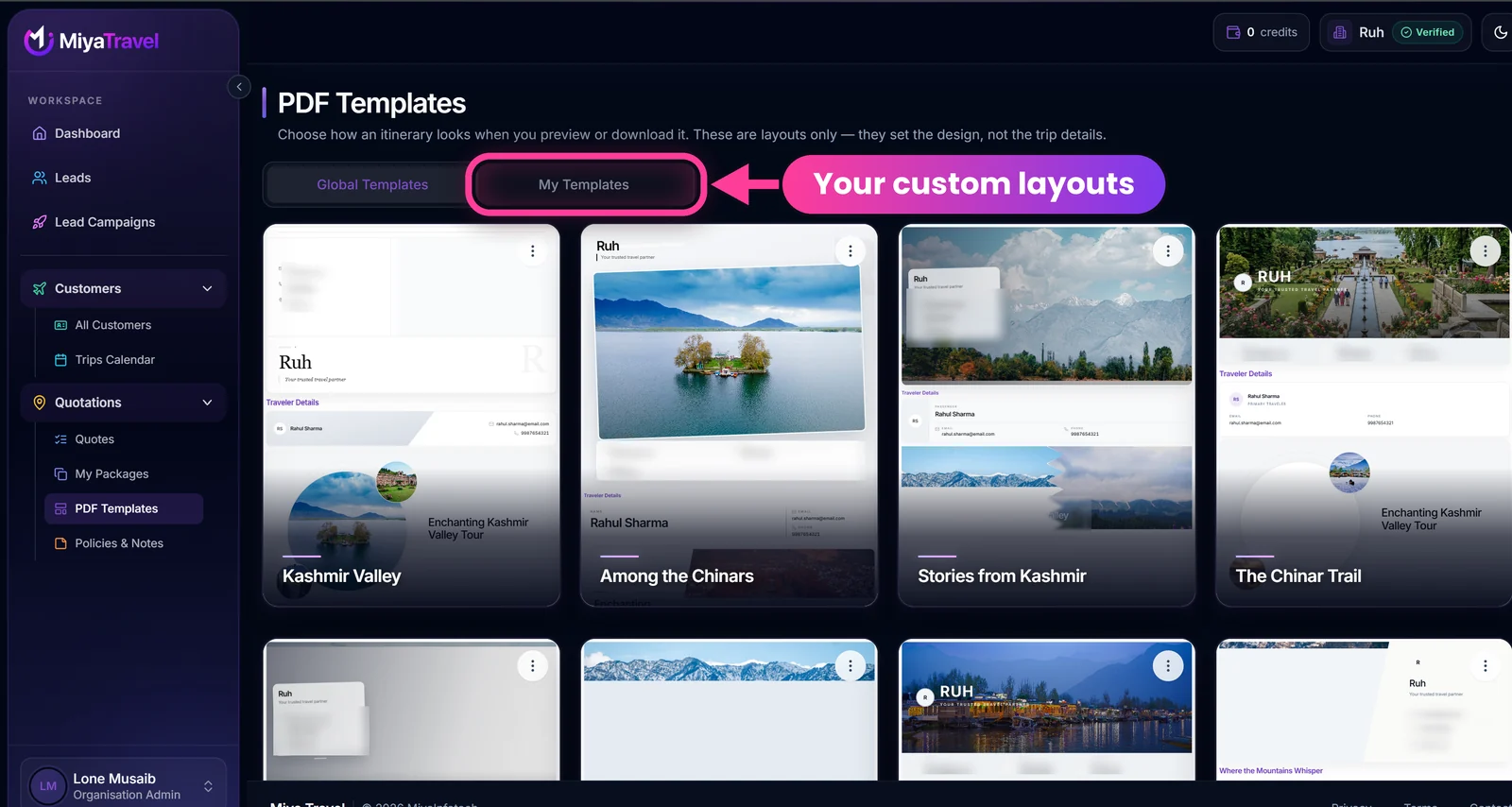
Each card shows a preview of the layout with sample traveler details and your organisation's name and contact details. The three-dot menu on a card opens its actions.
- Global Templates: platform-provided layouts.
- My Templates: layouts customised by your organisation.
A template can contain ordered variants of header, traveler details, hero, description, highlights, flights, itinerary, inclusions and exclusions, additional services, policies, notes and package summary.
Customise a template#
- Open a global template.
- Select Edit. The system clones it to your organisation when required.
- Choose section variants and images using the template controls.
- Expand or collapse the template panel for more preview room.
- Rename the template inline, then save or cancel the rename.
- Save the customised template.
Manage and use templates#
- Preview a template.
- Search and browse more templates.
- Rename a template.
- Delete an organisation template after confirmation.
- Select the template when previewing or downloading a quotation or package.
Customise at least one template with your own section variants and images during setup so every quote looks consistent.
Frequently asked questions#
Can I edit a global template directly?
Selecting Edit clones it to your organisation, so your changes belong to My Templates.
Does a template change my itinerary content?
No. Templates change only the layout and look of the PDF.
Can I delete a template?
Yes, organisation templates can be deleted after confirmation.