
Wallet and top-ups
Fund your wallet in rupees, pay for campaign leads and plans, and audit every transaction.
Wallet access is for organisation admins only.
Understand credits#
The header shows your current balance. The interface states ₹1 = 1 credit. Credits can be debited for lead purchases and affected by refunds, adjustments, bonuses and top-ups. Plan activation and upgrades also use wallet balance.
Your wallet page#
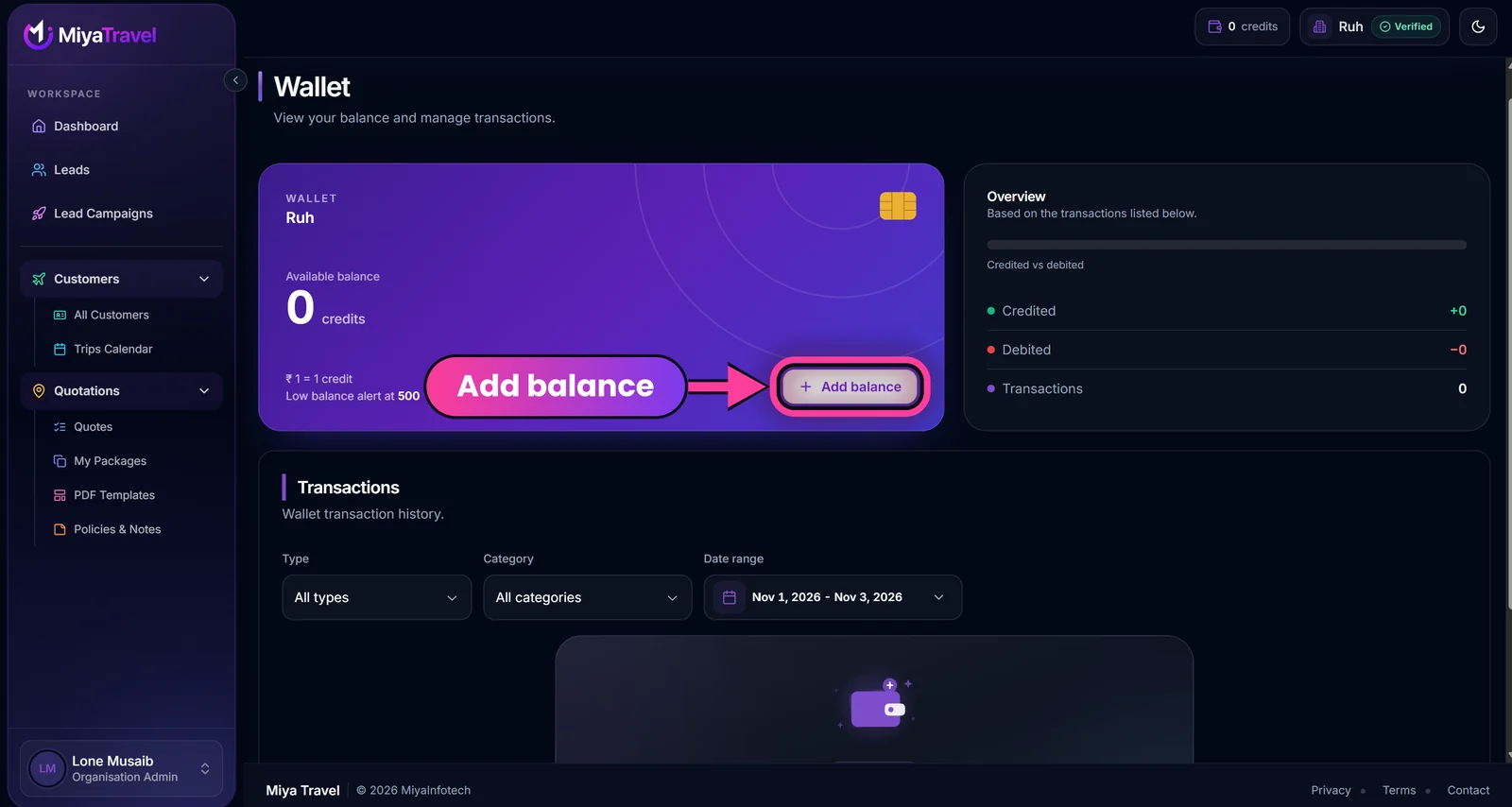
The purple wallet card shows your organisation name, Available balance in credits, the rate (₹1 = 1 credit) and a Low balance alert level (500 credits in the example). The Overview panel beside it totals Credited, Debited and the number of Transactions for the transactions listed below.
Add balance#
- Select the wallet amount in the header, or open Wallet.
- Select Add balance.
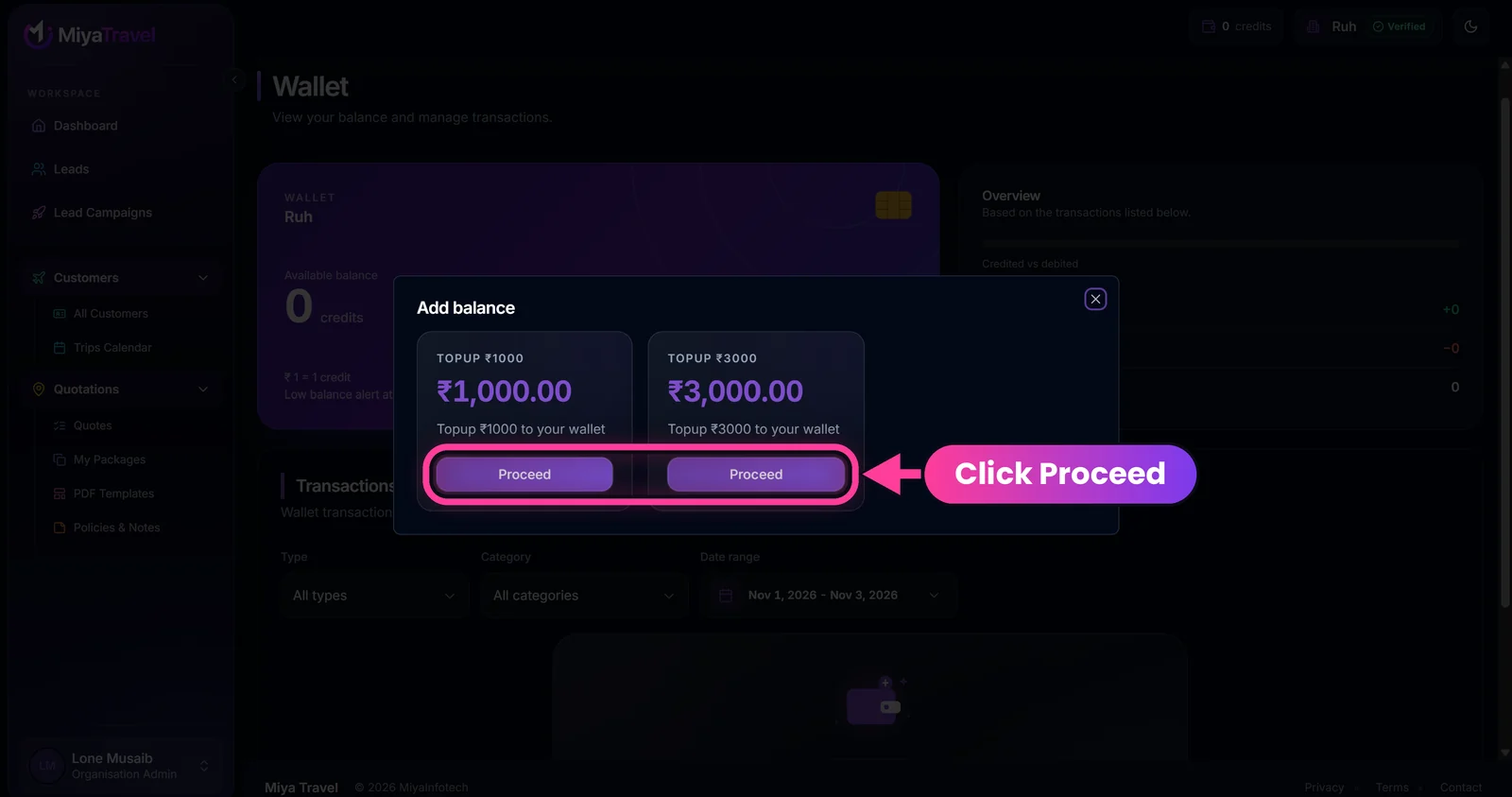
- Choose an available top-up plan, for example ₹1,000 or ₹3,000, and select Proceed.
- Review the name, description, effective amount, tax, commission and total where shown.
- Continue to the configured payment provider (Razorpay or Cashfree).
- Complete payment in the provider's checkout.
- Wait for the verification page. It checks the payment state and reports paid, failed or still pending.
- Return to Wallet and confirm the credit transaction.
Only active and approved organisations can add balance. If no top-up plans are configured, the dialog says plans are unavailable.
Transaction history#
The Wallet page lists transactions and supports filters by:
- Type: Credit or Debit.
- Category: Topup, Lead Purchase, Refund, Adjustment or Bonus.
- Date range: the period to show.
Open a transaction to see the amount, balance before and after, reference, description, metadata, creator and timestamp where available. Use pagination for older transactions.
Topping up from the Subscription page#
If a Premium activation fails because your balance is too low, the Subscription page offers Add balance directly. After a successful payment the verification page offers Continue to Premium, which returns you to Subscription. Any other return address is ignored and the page shows View wallet instead. See Subscription and free trial.
If a payment is pending#
Do not pay again immediately. Let the verification page finish checking, then look at Wallet transactions. If the provider shows the payment as captured but no credit appears, give support the provider order or payment ID.
Frequently asked questions#
How many credits do I get per rupee?
One rupee equals one credit.
Which payment providers are supported?
Razorpay and Cashfree, depending on what is configured for your environment.
Why can't I add balance?
Your organisation must be active and approved, and top-up plans must be configured.
Can I top up while buying Premium?
Yes. If the balance is too low, choose Add balance in the dialog, pay, then select Continue to Premium.
What uses my wallet balance?
Campaign lead purchases, and plan activation or upgrades.