
Leads
Capture, assign, follow up and convert every traveler inquiry with a clear status pipeline.
Lead sources and statuses#
Supported sources are Google, Meta, LinkedIn, Direct, Referral, Website, Manual, Test Lead and Other. Test Lead is reserved for generated or testing data and is not selectable in the normal manual lead form.
Pipeline statuses are:
- New
- Contacted
- Qualified
- Quoted
- Won
- Lost
- Follow Up
The board excludes the special Follow Up column. Follow-up work has its own tab.
Google Ads lead forms#
Leads submitted through a Google Ads lead form on a Miya Travel campaign arrive in your pipeline automatically with the source Google. They are created and distributed like any other campaign lead, so they appear in My Leads, show the campaign name and platform, and are charged at the campaign's lead price. See Lead campaigns.
Browse leads#
- Open Leads.
- Switch between My Leads and Follow Up.
- For My Leads, choose list or board view. Your last choice is stored in the browser.
- Set a date range.
- Open filters and choose status, source and, for admins, assignment.
- Select Apply. A dot on the filter button shows that filters are active.
- Use Clear to remove filters.
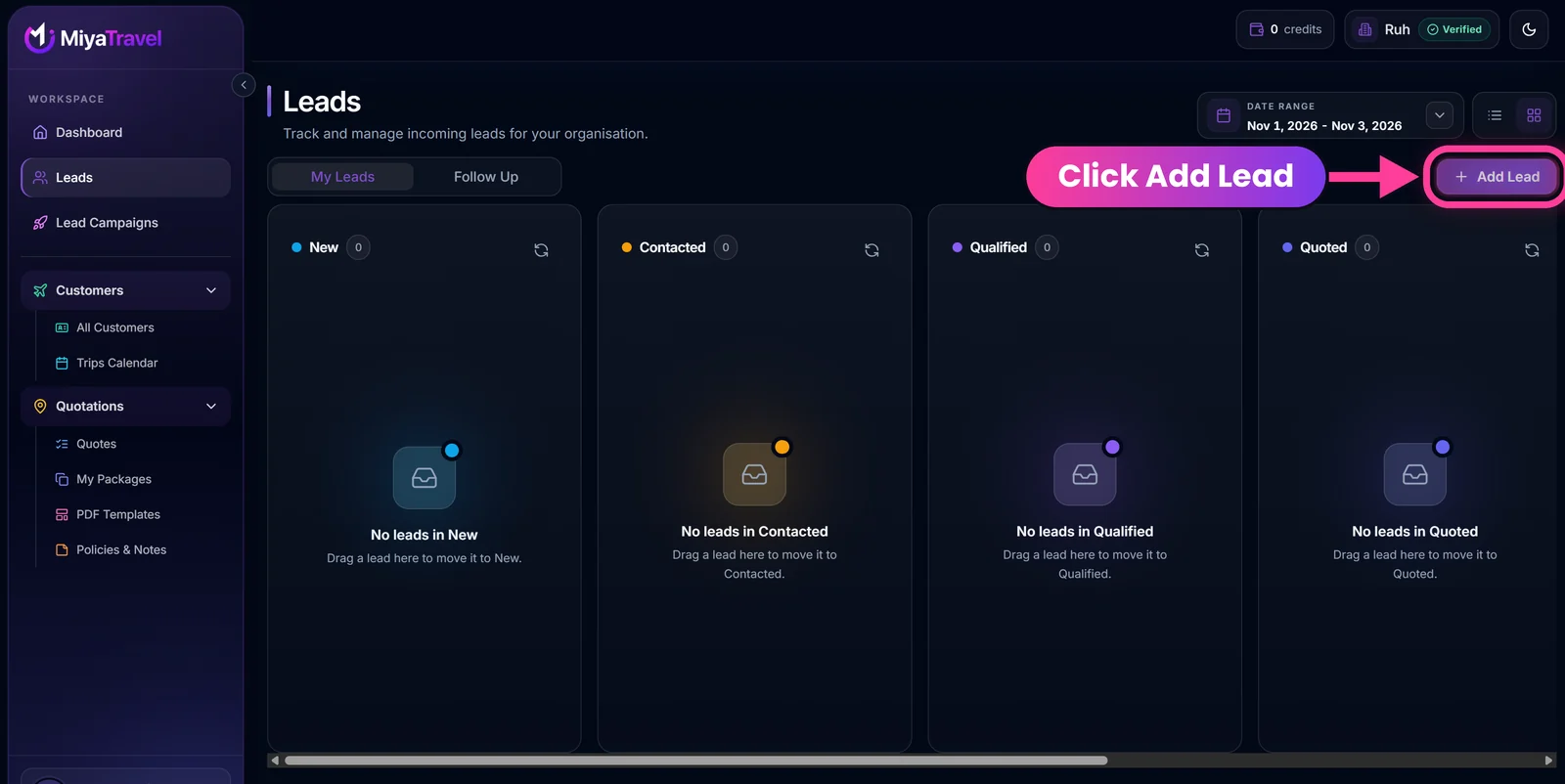
On the board, each column header shows the status name, a lead count and a refresh button. Drag a lead card to another column to change its status. Scroll sideways to reach the remaining columns. Use the two icons beside the date range to switch between list and board view.
The list refreshes for newly arriving leads. New leads can trigger a notification sound and visual marking. More records load as you continue through the list or board.
Add a manual lead (admin)#
- Select Add Lead.
- Enter the required lead name.
- Optionally enter email and phone.
- Add a description.
- Choose the source.
- Enter the destination.
- Choose travel from and to dates.
- Enter the number of travelers.
- Select country, state and city as needed. India is the default country.
- Submit.
Work a lead from its detail dialog#
Open a lead card or row to see the name, email, phone and source. Where present you also see the source URL, campaign name and platform, and description. You can see the destination, location, dates and traveler count, plus status, assignment, follow-up date, notes, created and updated times, and the linked customer.
Available actions:
- call the lead through a
tel:link; - email the lead through a
mailto:link; - open the source URL;
- edit name, email, destination and travel dates;
- edit the phone number (organisation admin only);
- assign or reassign the lead to an agent;
- change status;
- set or clear a follow-up date;
- write notes, which auto-save shortly after you stop typing;
- open the linked customer;
- create a quotation.
Change status in board view#
Drag a lead card into another status column. If the update fails, the card returns to its previous column and the error is shown.
Follow-up workflow#
- Open a lead.
- Set its status to Follow Up and choose a follow-up date.
- Open the Follow Up tab to see scheduled work.
- Use the date and filters to focus on due or overdue work.
- Contact the traveler, add notes and move the lead to its next status.
Create a quotation from a lead#
From lead details, select Create quotation, then choose:
- Create from scratch for a blank quotation; or
- Create using My Packages to search and reuse a saved package.
The selected lead is attached to the quotation so traveler information and later customer history are linked. See Quotes and itineraries.
Lead-to-customer conversion#
When you change a lead to Quoted or Won, Miya Travel creates a customer or links the matching one automatically. The lead then carries that customer link. Use View customer to open the record. Won trips appear in the customer's travel history and, when dated, in the trips calendar.
Frequently asked questions#
How do I move a lead to the next stage?
Change the status in the lead detail dialog, or drag the card to another column in board view.
Where do I see leads that need follow-up today?
Open the Follow Up tab on the Leads page and use the date filter, or check the follow-up panel on the dashboard.
Who can edit a lead's phone number?
Only an organisation admin.
Do leads from Google Ads arrive automatically?
Yes. Google Ads lead-form submissions on a campaign you subscribe to are added to your pipeline with the source Google.
Do my notes save automatically?
Yes. Notes auto-save shortly after you stop typing.