
Sign up and onboarding
Create your agency account, accept the terms, upload verification documents and get approved.
Only organisation admins can create accounts themselves. Sales agents are invited by an admin (see Invite and manage agents).
Start sign-up#
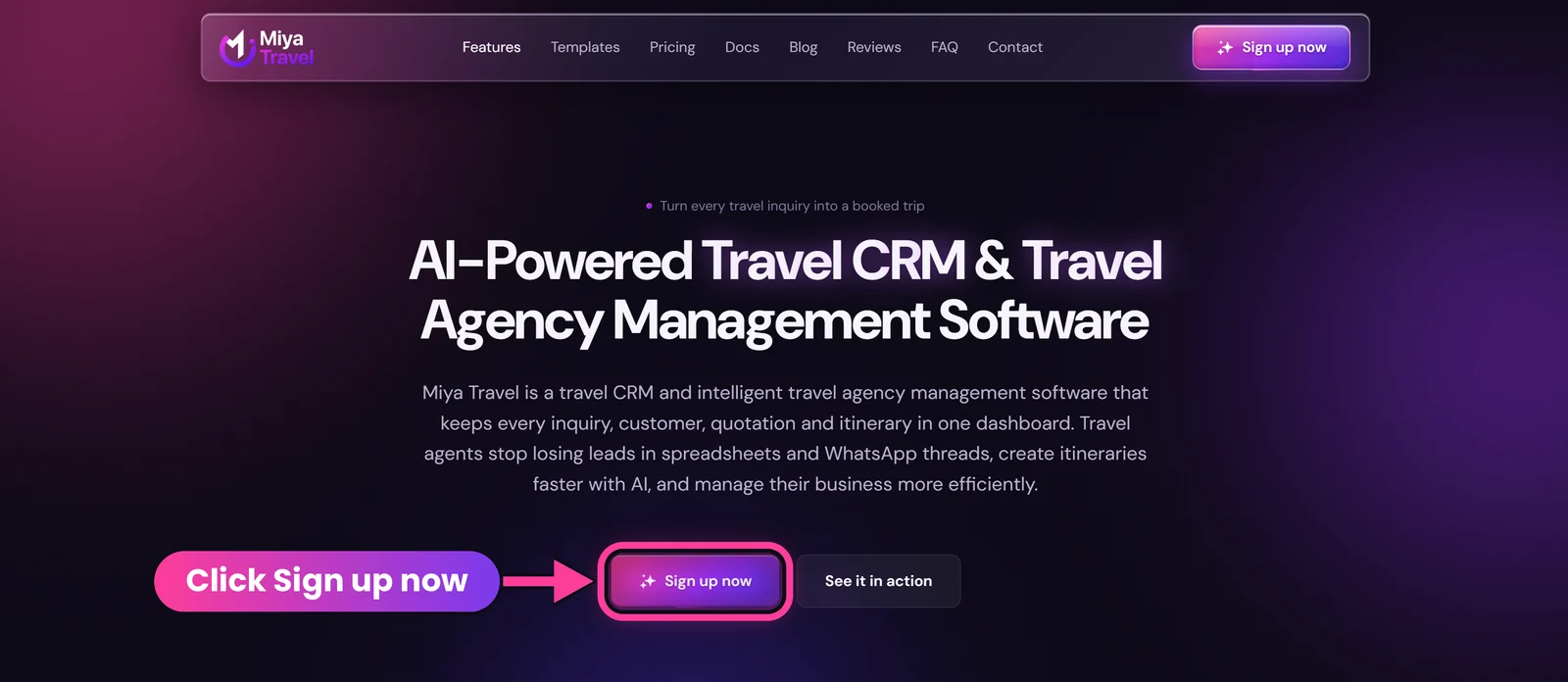
- Open
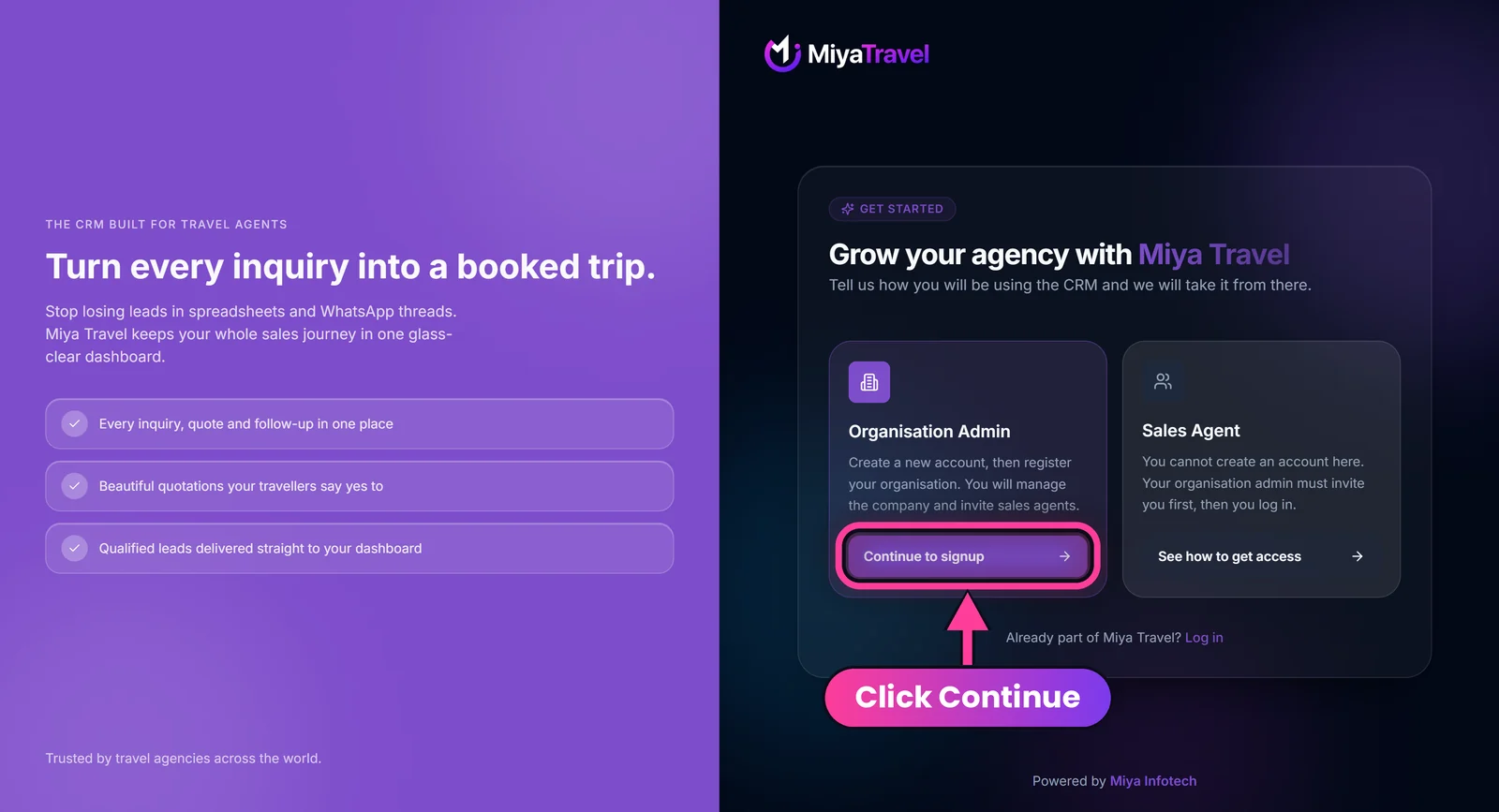
/signupat agent.miyatravel.com. You can also select Sign up now in the menu or the main banner on miyatravel.com. - On the Get started screen, choose Organisation Admin and select Continue to signup.
The second card, Sales Agent, is not a sign-up route. It explains that you cannot create an account here and that your organisation admin must invite you first. Select See how to get access to read how. Already registered? Select Log in.
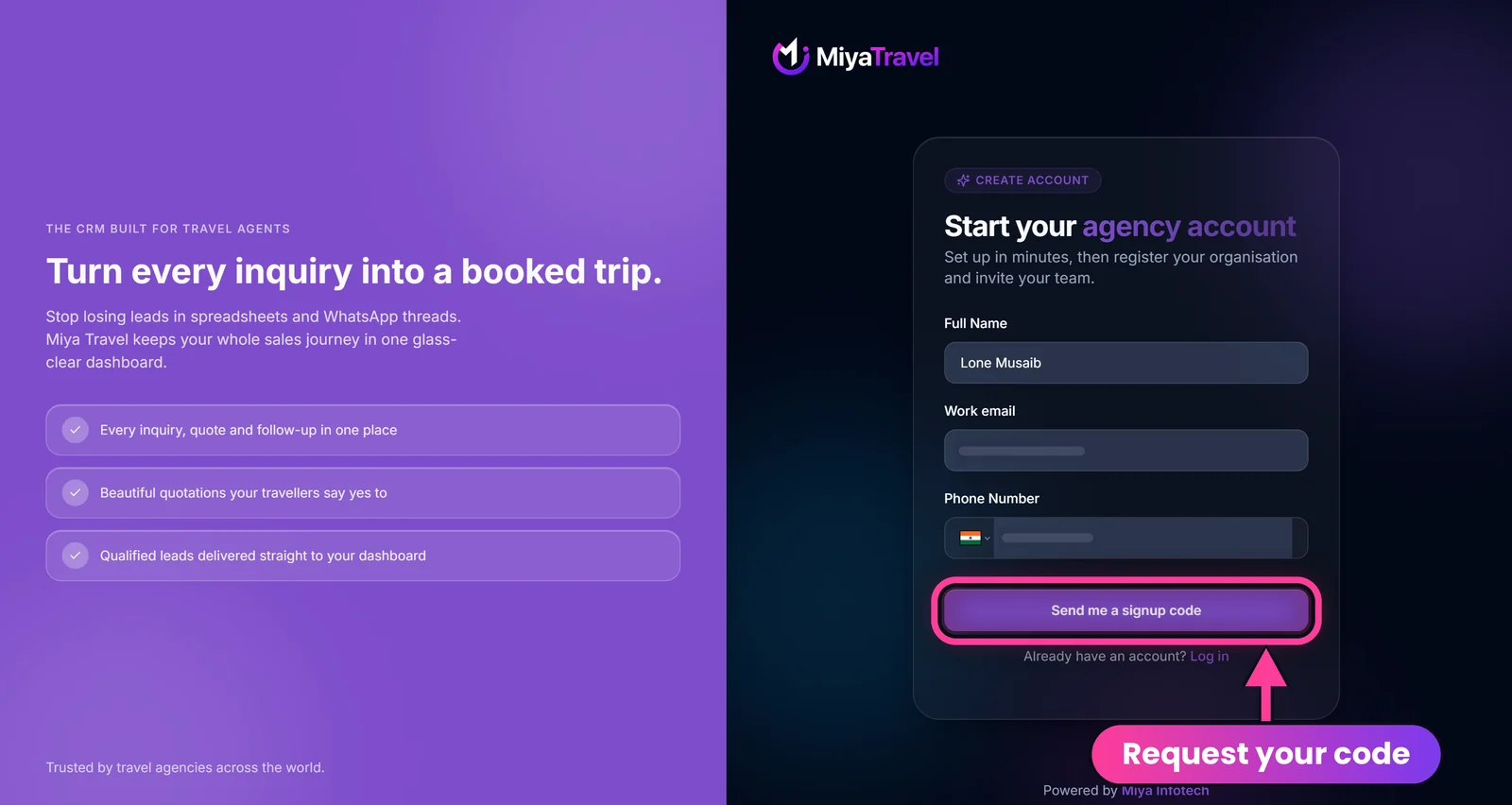
- On Start your agency account, enter your Full Name, Work email and Phone Number. Pick the country from the flag selector before typing the number (India uses
+91). - Select Send me a signup code to request a one-time password (OTP).
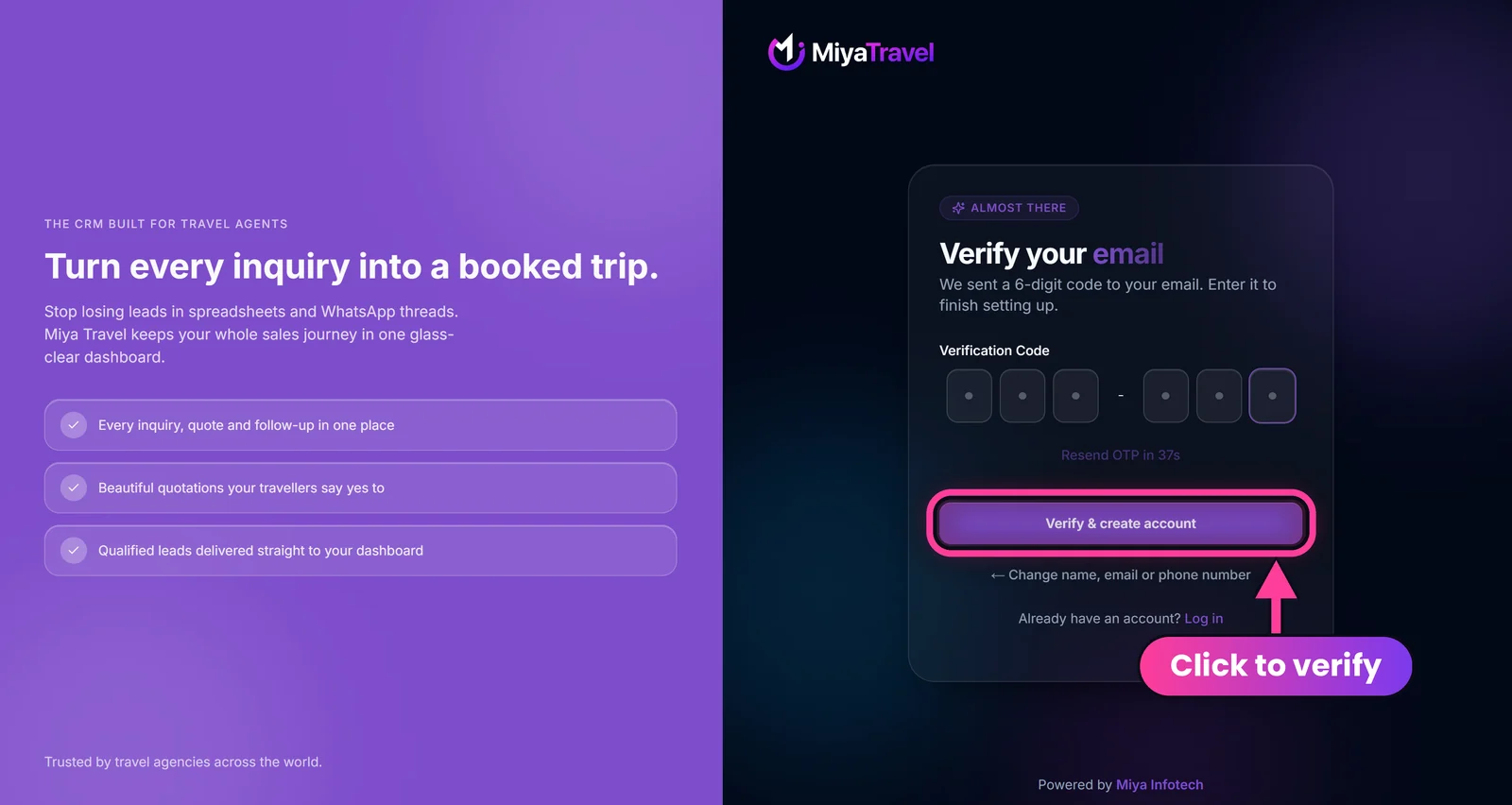
- Check your email inbox for the six-digit code. The Verify your email screen shows six boxes and a countdown to the next resend.
- Enter the code and select Verify & create account. If it has not arrived, wait for the countdown to finish and select Resend OTP. To correct a typo, select Change name, email or phone number.
- After successful verification, the workspace opens the onboarding flow.
Sign-up is passwordless. The same email and phone number identify you when you log in later.
Create the organisation#
Complete the agency form. Required fields are marked with *.
Required business details
- Company name: 2 to 255 characters.
- Business type: Individual, Partnership, Private Limited, LLP or Sole Proprietorship.
- Full business address: 10 to 500 characters.
Optional registration details
- Six-digit business pincode.
- Registration number or CIN.
- 15-character GST number (GSTIN).
Optional online presence
- Website, Instagram, Facebook, X (Twitter) and LinkedIn. Web addresses can be entered with or without
https://, but must be valid domain-style URLs.
Optional alternate contact
- Alternate phone number with country code.
- Alternate email used for important account notices.
Select Continue when the form is valid.
Review and accept terms#
- Read the displayed Terms and Conditions and scroll through if needed.
- Select the acceptance checkbox.
- Submit acceptance to continue.
The workspace stays blocked by onboarding until this step is complete.
Upload verification documents#
This step is optional. You can select Skip for now or Continue without documents. It stays available at /onboarding/documents while your organisation is Pending, Under Review or Approved, and the review screen also offers Upload documents.
| Document | What to upload |
|---|---|
| Business License | Trade licence or business registration certificate |
| GST Certificate | GST registration certificate |
| Identity Proof | Aadhaar, PAN or passport of the business owner |
| Company Logo | Your logo, shown publicly |
Accepted formats are PDF, PNG, JPG and JPEG, up to 5 MB each. The logo is a public image. The other documents are protected and open through a temporary secure link.
After a protected verification document is uploaded, you cannot replace it from the normal screens. Contact support to change it. The company logo can be replaced.
Verification review#
After submission the status becomes Under Review. The screen refreshes automatically while waiting.
| Status | Meaning | What to do |
|---|---|---|
| Pending | Details are being saved | Wait |
| Terms & Conditions | Terms still need to be accepted | Accept the terms |
| Under Review | Verification in progress, normally 1 to 5 minutes | Wait or refresh |
| Approved | Verification complete | Continue into the workspace |
| Rejected | Verification was rejected | Review the status, update permitted details or documents, or contact support |
| Suspended | Access is paused | Contact support |
Start the free trial#
An eligible, active and approved organisation that has not used its trial sees Start free trial in the header. Select it, review the trial prompt and confirm. The trial length comes from platform settings. Your Subscription page shows the exact period. See Subscription and free trial.
Frequently asked questions#
Why can't I sign up as a sales agent?
Sales agents cannot create accounts from the sign-up page. An organisation admin invites them from the Agents page.
Is GSTIN mandatory?
No. GSTIN, CIN and pincode are optional at sign-up. If you add a GSTIN it must follow the 15-character Indian GSTIN structure.
The OTP did not arrive. What now?
Check spam or junk, confirm your email and phone number, wait for the countdown (for example, Resend OTP in 37s) and then use Resend OTP. Do not reuse a code from an older session.
Can I change my uploaded GST certificate?
Not from the normal interface. Protected verification documents cannot be replaced after upload, so contact support.