
Invite and manage agents
Add sales agents to your organisation, review the team, and remove or restore access.
Organisation admins manage this area from Agents in the account menu. There is no self-service sign-up for agents.
Invite an agent#
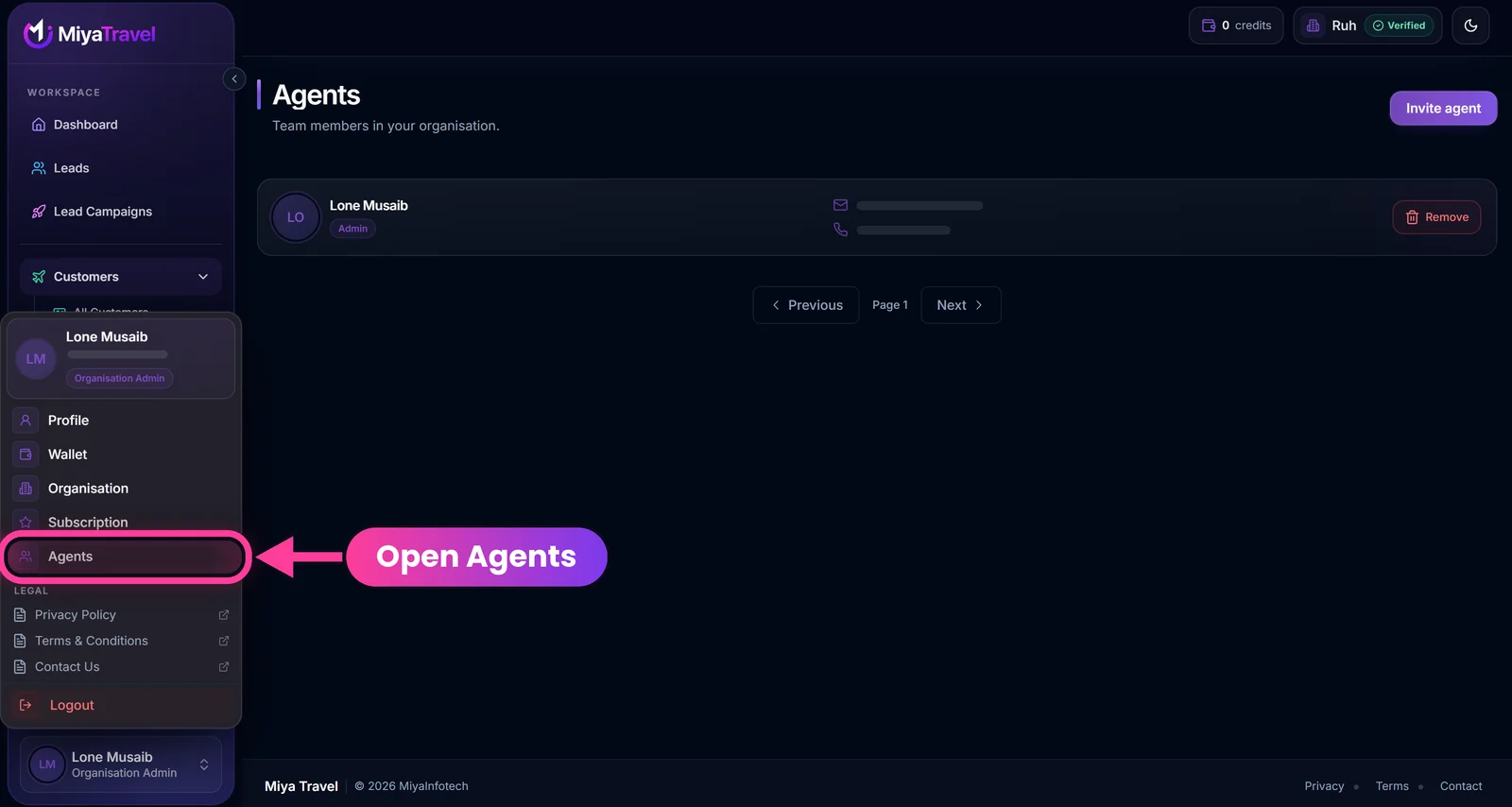
- Select your name card at the bottom of the sidebar to open the account menu, then select Agents.
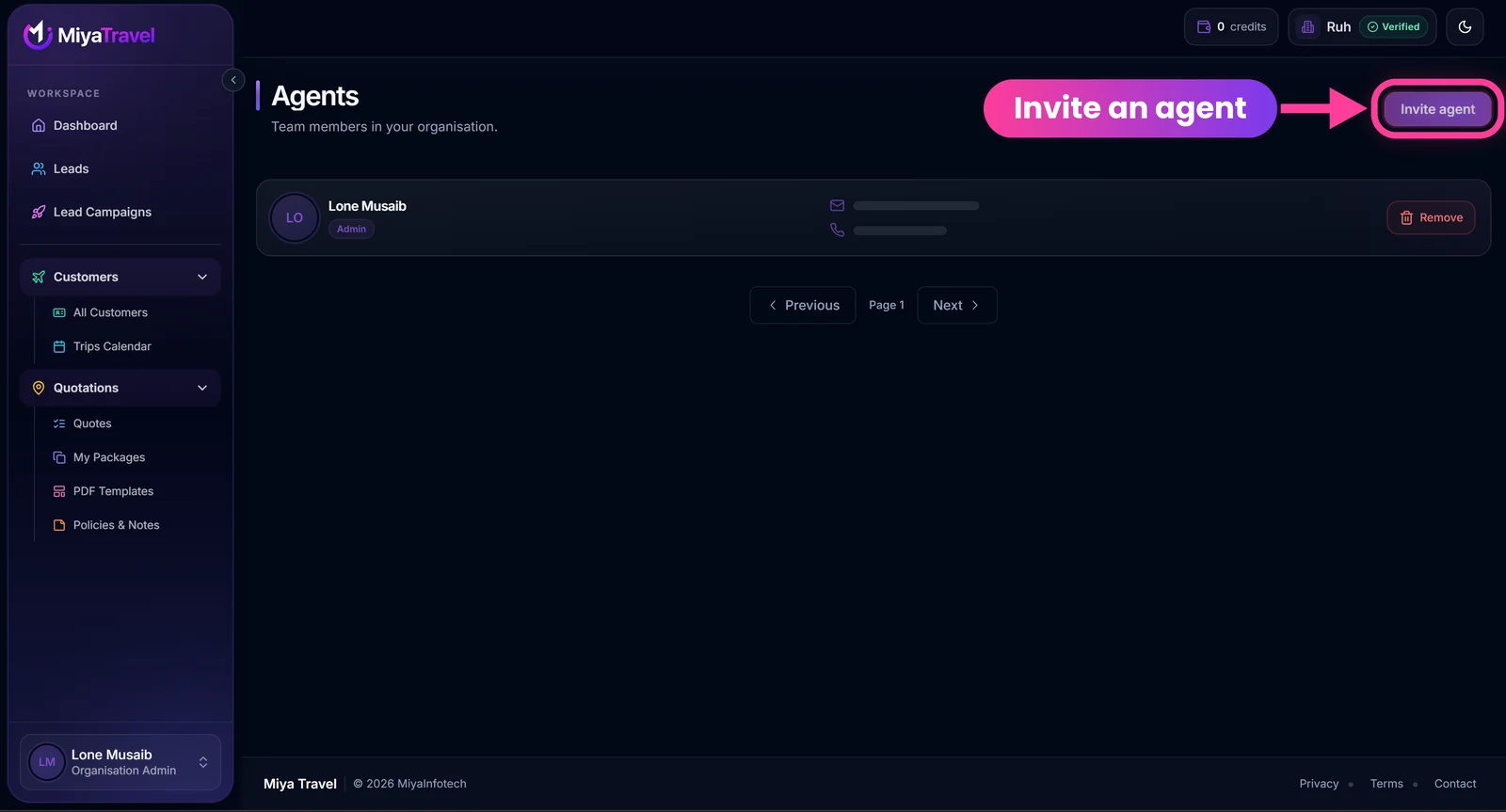
- On the Agents page, select Invite agent at the top right.
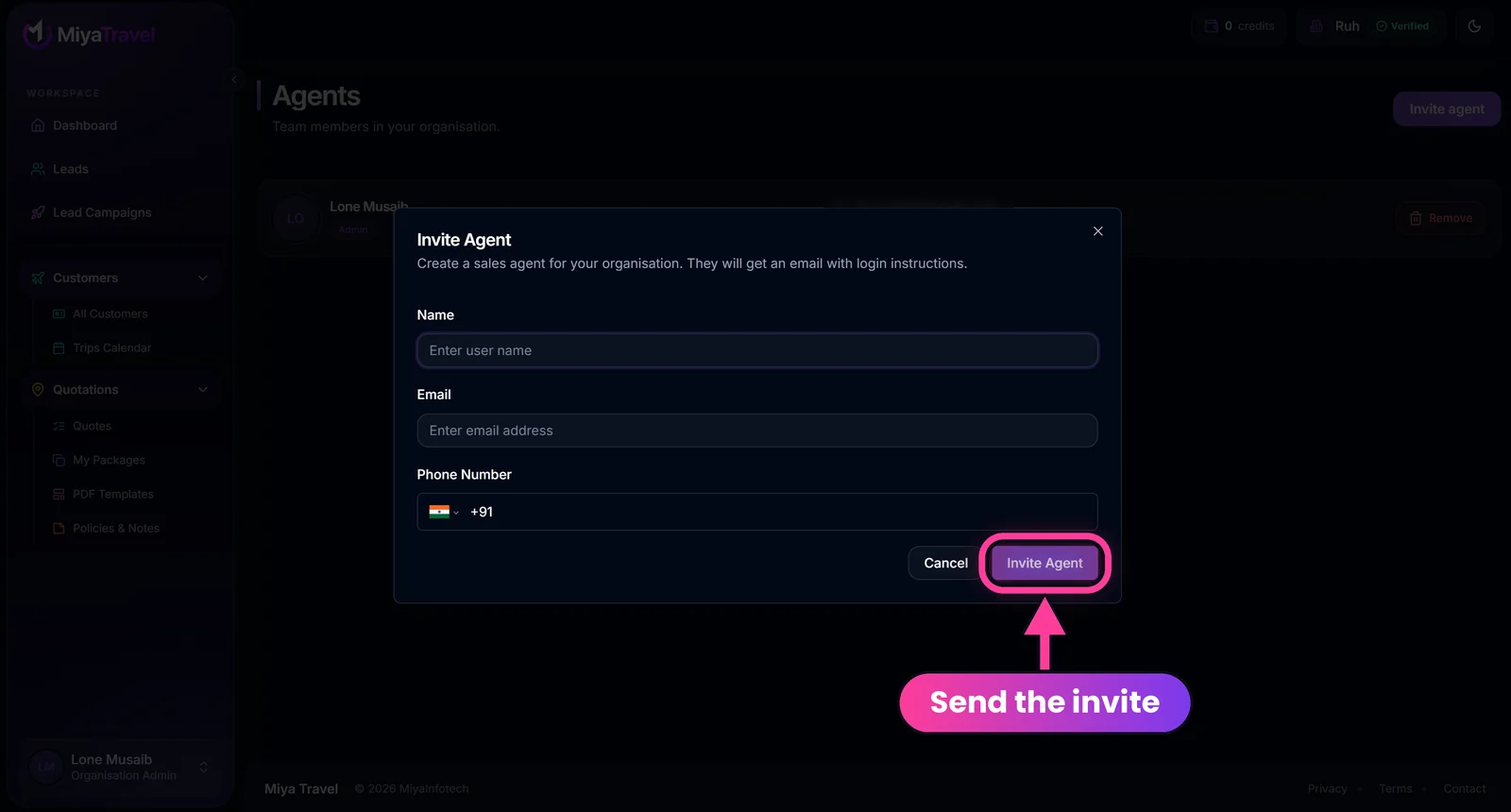
- In the Invite Agent window, enter the name (maximum 50 characters), a valid email (maximum 100 characters) and the phone number with country code. India is selected by default with
+91. - Select Invite Agent. The window explains that the agent will get an email with login instructions.
- Review the confirmation and confirm.
- Ask the agent to log in at
/loginwith that exact email and phone number.
If a user already exists but cannot be invited through the normal flow, the app shows a support-oriented error dialog.
Browse the team#
Each row shows the person's initials, name, a role badge (Admin or Sales agent), email, phone number and a Remove button. Use Previous and Next at the bottom for larger teams.
Remove or restore access#
- Select the remove action and confirm Remove agent?
- For an inactive or removed user, select the add-back action and confirm Add agent back?
Removing access can affect lead assignment availability. It does not mean historical leads and records should be deleted.
What agents can do#
Sales agents work on assigned leads and follow-ups, customers, quotations, packages, templates, content and the calendar, subject to premium access. See Roles and permissions.
Frequently asked questions#
How does an agent get access?
An admin invites them with name, email and phone. The agent then logs in with those exact details.
What if the invited person sees a waiting screen?
Their account is ready but is not attached to an organisation. Ask the admin to add or reactivate them from the Agents page.
Can I re-add a removed agent?
Yes. Use the add-back action for an inactive user and confirm.