
Subscription and free trial
Start the free trial, activate premium and understand which features need it.
Subscription management is for organisation admins only. For current plan prices see the pricing page.
Subscription summary#
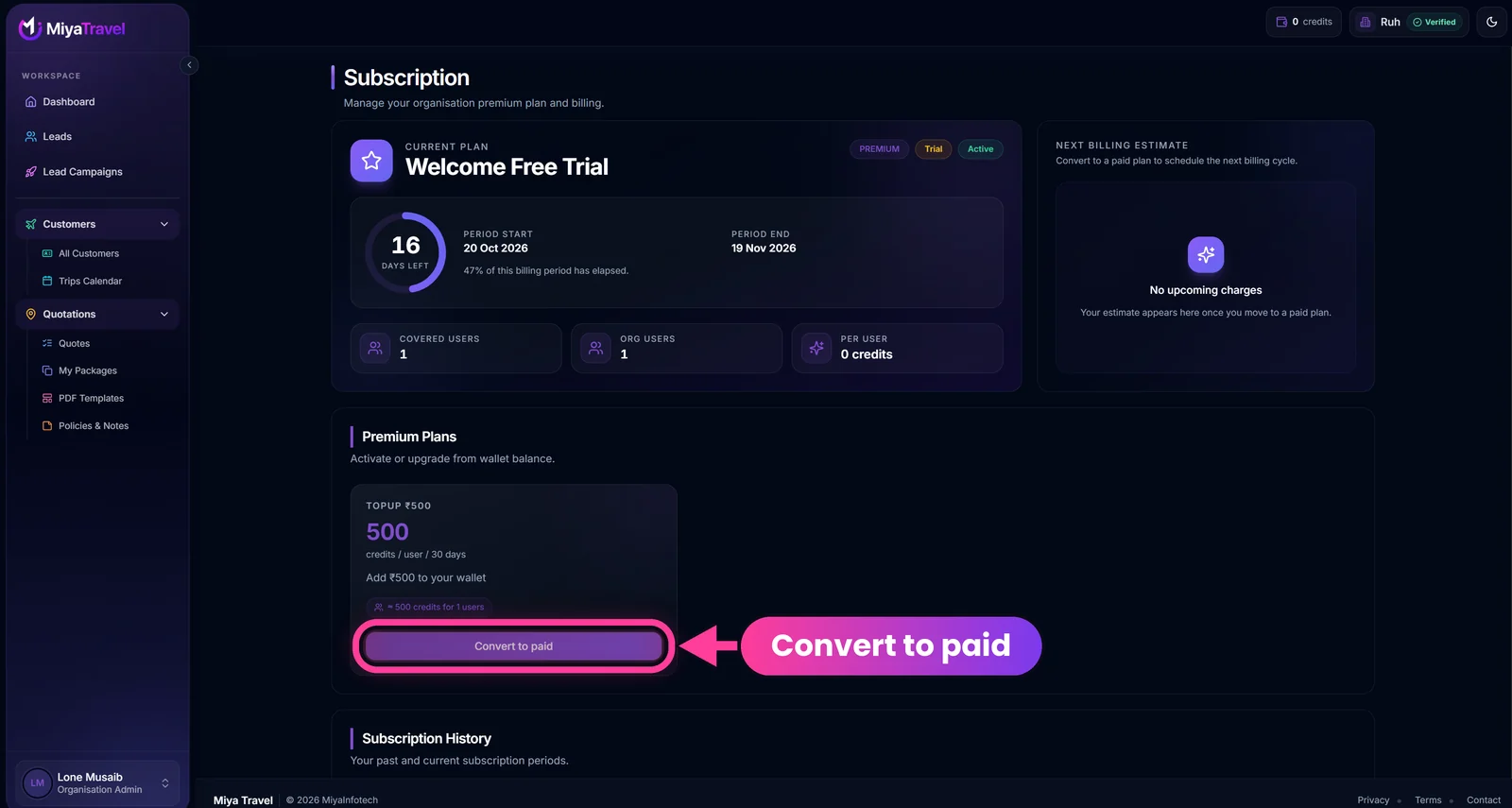
At the top, Current plan shows the plan name with status badges such as Premium, Trial and Active. A progress ring counts the days left, with Period start, Period end and how much of the billing period has elapsed. Three tiles show Covered users, Org users and the Per user price in credits. The Next billing estimate panel says No upcoming charges until you move to a paid plan.
The page shows:
- user count;
- current plan and status;
- start and end dates;
- per-user price;
- number of covered users;
- whether the period is a trial;
- estimated bill and billing date;
- whether a free trial has already been used.
Start the trial#
If your organisation is eligible, select Start free trial from the header or subscription prompt, review the duration and features, and confirm. A trial can be used only when the system marks the organisation eligible. The length is set in platform settings. Check Period start and Period end on your Subscription page for your exact dates. The trial in the screenshot above runs for 30 days.
Activate or upgrade premium#
- Open Subscription.
- Scroll to Premium Plans. Each plan card shows its top-up amount, the credits per user for 30 days and a Convert to paid button.
- Review the available plans and per-user or effective pricing.
- Choose a plan.
- Review the action dialog and amount.
- Confirm. Plan activation or upgrade uses wallet balance.
Make sure your wallet has enough credits before you confirm.
If your wallet balance is too low#
If activation fails because the wallet does not have enough credits, an Insufficient wallet balance dialog opens instead of a generic error.
- Select Add balance. The button works only for an active, approved organisation.
- Choose a top-up plan and complete the Razorpay or Cashfree checkout.
- On the payment verification page, wait for the result, then select Continue to Premium to return to Subscription.
- Choose your Premium plan again and confirm.
Miya Travel does not retry the activation automatically after a top-up. You need to select and confirm the plan again.
Select Not now to close the dialog without adding balance.
Subscription history#
The history lists past and current periods with plan name, state, dates, user coverage, price and trial flag. If there is none, the page shows an empty state.
Premium feature behaviour#
Without active premium access, gated pages show an upgrade or trial prompt. Premium features are Customers, Itineraries, Itinerary Library, Templates, Content and Calendar.
Frequently asked questions#
How long is the free trial?
Its length comes from platform settings and is shown as Period start and Period end on the Subscription page.
Why don't I see Start free trial?
The button shows only for an eligible, active, approved organisation that has not already used its trial.
What happens without premium?
Premium pages show an upgrade or trial prompt instead of their normal content.
How do I pay for a plan?
Plan activation and upgrades use your wallet balance. Add balance first.
What if I don't have enough balance when I activate?
A dialog offers Add balance. After the top-up succeeds, use Continue to Premium to return to Subscription and confirm the plan again.
Does paid Premium include AI itineraries?
Yes. Paid Premium plans include unlimited AI itinerary generation.