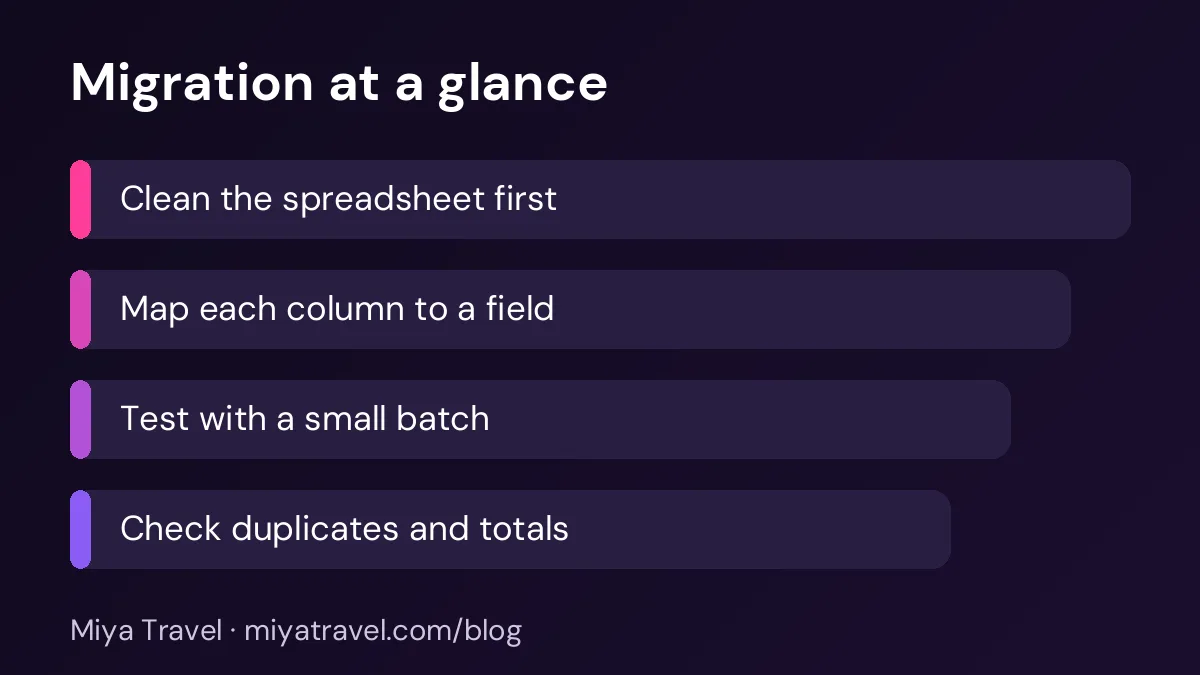
Moving travel agency data from Excel to a CRM works best in stages. Clean the spreadsheet first, map each column to a CRM field, import a small test batch, check duplicates and totals, then import the rest. A careful move keeps every lead and customer history intact.
Most travel agencies do not switch from Excel on a single day. They have years of leads, customers and quotations in spreadsheets, and they need that history in the new system. A rushed import can scramble names, duplicate customers and lose the link between a client and their trips. A careful move takes a few days of planning and checking, but it protects the data the business depends on. This guide gives you a step-by-step plan for moving travel agency data from Excel into a CRM.
Decide what to move
Start by deciding what the new system needs. Most agencies move three things: open leads, customer records and the recent quotations and bookings. Old closed leads from several years ago rarely add value, and they add clutter. Keep the old spreadsheets as an archive, and move only the data you will use in daily work and reports.
Write down the period you will move. For example, all open leads, all customers with a trip in the last two years and all quotations from the current season. A clear scope prevents the import from growing into a months-long project.
Clean the spreadsheet first
Cleaning is the most important step. Spreadsheets often contain duplicate rows, blank phone numbers, names in different formats and destinations written in several ways. Clean these before you import, because the CRM will copy the mess exactly.
Start with the phone numbers. Standardise the format, remove spaces and symbols, and add the country code if you use it. Next, check the names. Use the name as it appears on travel documents, and remove extra spaces and capital letters. Standardise the destinations, so that "Goa", "goa" and "GOA" all become one value.
Sort the sheet by phone number and look at neighbouring rows. Most duplicate customers appear as two rows with the same number and slightly different names.
Map each column to a field
Create a mapping sheet with two columns: the column name in your spreadsheet and the matching field in the CRM. For example, "Client Name" maps to the customer name, "Mobile" maps to the phone number, "Source" maps to the lead source and "Status" maps to the pipeline stage.
Some columns will not map directly. A notes column that holds several facts should be split into fields where possible. A status such as "Hot" or "Follow up" should be translated into one of the CRM's stages. Agree the mapping with the team, because each person may have used the columns differently.
Test with a small batch
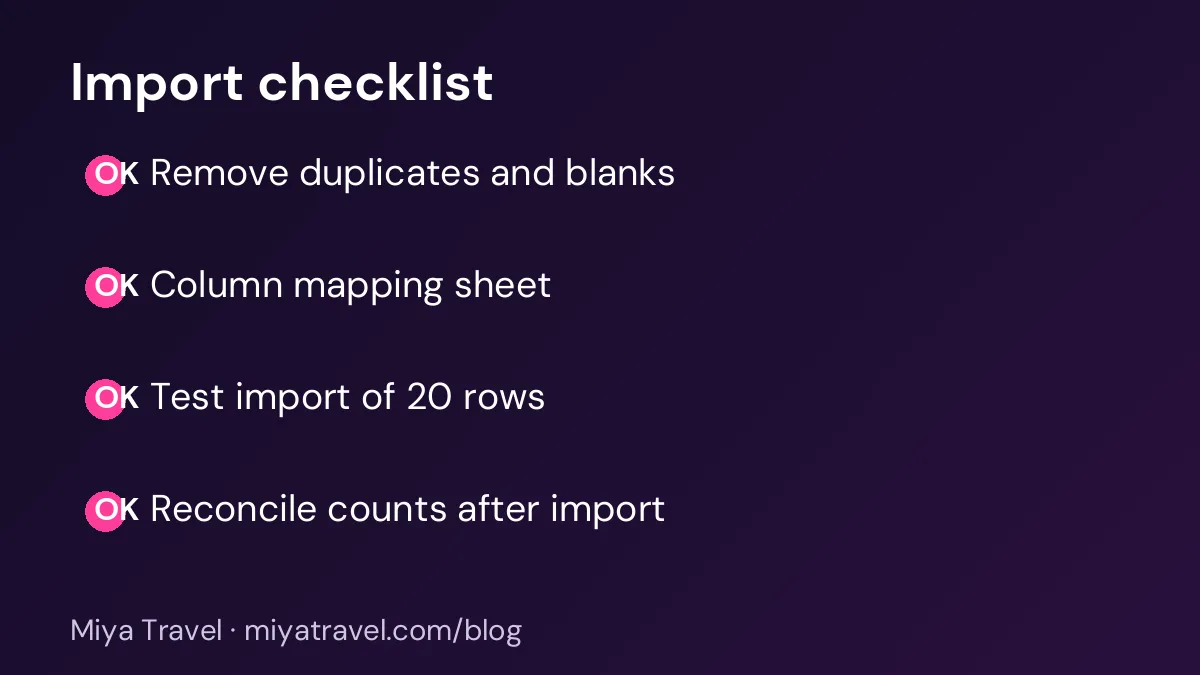
Before you import the full list, import a test batch of about twenty rows. Choose a mix of leads, customers and quotations, including one difficult case, such as a duplicate or a missing phone number. Check every field in the CRM against the spreadsheet.
If the test reveals a problem, fix the mapping or the cleaning, then delete the test records and try again. Do not import the full list until the test is clean. A few hours of testing saves days of repair later.
Check for duplicates after import
Even with cleaning, duplicates can appear, especially between leads and customers. After the full import, search for duplicates by phone number and email. Merge records that clearly belong to the same person, keeping the most complete information and the full history from both.
Check the trip history too. A customer who travelled twice should have both trips linked to the same record. If the second trip is on a separate record, merge the two so the history is complete.
Reconcile the counts
Count the rows in the spreadsheet and the records in the CRM. The numbers should match, after allowing for any duplicates you merged and any rows you chose not to import. Keep a note of the difference and the reason for it.
Reconcile the totals too. For quotations and bookings, compare the total value in the spreadsheet with the total in the CRM for the same period. A difference means a row was lost or a value was changed during import.
Check a sample of records by hand
Pick twenty records at random and check them against the original spreadsheet. Look at the name, phone number, status, destination and dates. Check at least one record from each type of lead and customer. This sample check often finds small problems that the counts miss, such as a date that moved by one day.
Ask a team member who knows the clients to check a few records too. They will spot a wrong name or a missing detail faster than a formula can.
Train the team on the new system
Once the data is in the system, train the team on the new screens. Show them where to find a customer's history, how to update a lead and how to create a quotation linked to a customer. Ask each person to find three of their own clients in the new system during the session.
Set one rule for the first month: every new enquiry goes into the CRM, and nothing is added to the spreadsheet. Check this rule each morning until the habit is established.
Keep the spreadsheet as an archive
Keep the original spreadsheets in a read-only folder for at least one financial year, or longer if your accountant or legal adviser requires it. Label them clearly with the date of the move. Stop editing them for daily work once the import is complete and checked.
A clear archive gives you a safety net if a question arises later, and it reassures the team that nothing has been lost.
Common mistakes
The first mistake is importing without cleaning, which copies duplicates and errors into the new system. The second is no test batch, so problems appear across the whole import. The third is no mapping sheet, so fields are filled inconsistently. The fourth is no reconciliation, so lost rows go unnoticed. The fifth is continuing to use the spreadsheet after the move, which creates two versions of the truth.
Another mistake is trying to move everything in one weekend. A staged move, with leads first and history second, is much less stressful.
Using the import tools in your CRM
Most CRMs provide an import tool that accepts a CSV file. Export your cleaned spreadsheet as CSV, check the column headers and map them in the tool. Some tools let you save the mapping, which is useful if you need to repeat the import.
Ask the vendor how the import handles duplicates. Some tools skip them, some create new records and some update existing ones. Know the behaviour before you start, so you can plan the clean-up.
Miya Travel supports leads and customer records, so check the leads documentation and the customers documentation for how records are set up before you plan the import.
Migrating attachments and documents
Spreadsheets often point to files stored elsewhere: a quotation PDF on a shared drive, a passport copy in a folder or a voucher saved in an email. These links are easy to lose during a move. Before you migrate, list the types of attachments your team uses, and decide where each type will live in the new system. Some tools allow file uploads, while others only store a link. Choose the approach that keeps the files safe and easy to find.
Check the links after the move. A link that worked on the old drive may break when the folder is renamed or moved. Test a sample of links from each type of record, and fix any that fail. If many links break, consider copying the files into a new, organised folder structure before you import the records that point to them.
Keep the original folders in place until the team has confirmed that every needed file can be opened from the new system. Deleting the originals too early is a common and costly mistake.
Planning the first week after the move
The first week after the switch is when small problems appear. A missing field, a status that does not map correctly or a customer who cannot be found will show up as the team uses the system for real work. Plan a short daily review for the first week, where each person reports any record that looks wrong.
Keep a log of these issues, with the record reference, the problem and the fix. Many issues repeat, and the log helps you improve the import template if you need to repeat the process. It also shows the team that problems are being handled, which builds confidence in the new system.
By the end of the first week, most agents should be finding records quickly and updating them without help. If some people are still struggling, offer another short session focused on their tasks, rather than repeating the full training.
Frequently asked questions
How long does it take to move travel data from Excel to a CRM?
For a small agency with a few thousand rows, a careful move takes a few days, including cleaning, testing and checking. Larger datasets take longer.
Should I move all my old data?
No. Move open leads, current customers and the current season's quotations. Keep older data as an archive, unless you need it for reports.
What is the most common problem in an import?
Duplicates and inconsistent names or phone numbers. Clean these before you import, and check for duplicates after the import.
How do I know the import worked?
Reconcile the record counts and totals, check a sample of records by hand and ask a team member who knows the clients to review a few records.
Should I keep the spreadsheet after the import?
Yes, as a read-only archive for at least one financial year, or longer if required. Stop using it for daily work once the import is checked.