

To track travel leads in Excel, use one sheet with a row for each lead, columns for the source, owner, status, destination, travel dates, next action and next follow-up date, and simple formulas that highlight overdue follow-ups. This works well until the team grows, and it prepares you for a dedicated tool.
Excel is the most common starting point for travel lead tracking, and for good reason. Most agents know how to use it, it costs nothing and it can hold a clear list of enquiries with the information the team needs. The problem is not the tool. It is the way the sheet is set up. A badly designed lead sheet becomes a messy list that nobody trusts. This guide shows you how to build a simple lead tracker in Excel that stays useful as the enquiries grow.
Start with one row per lead
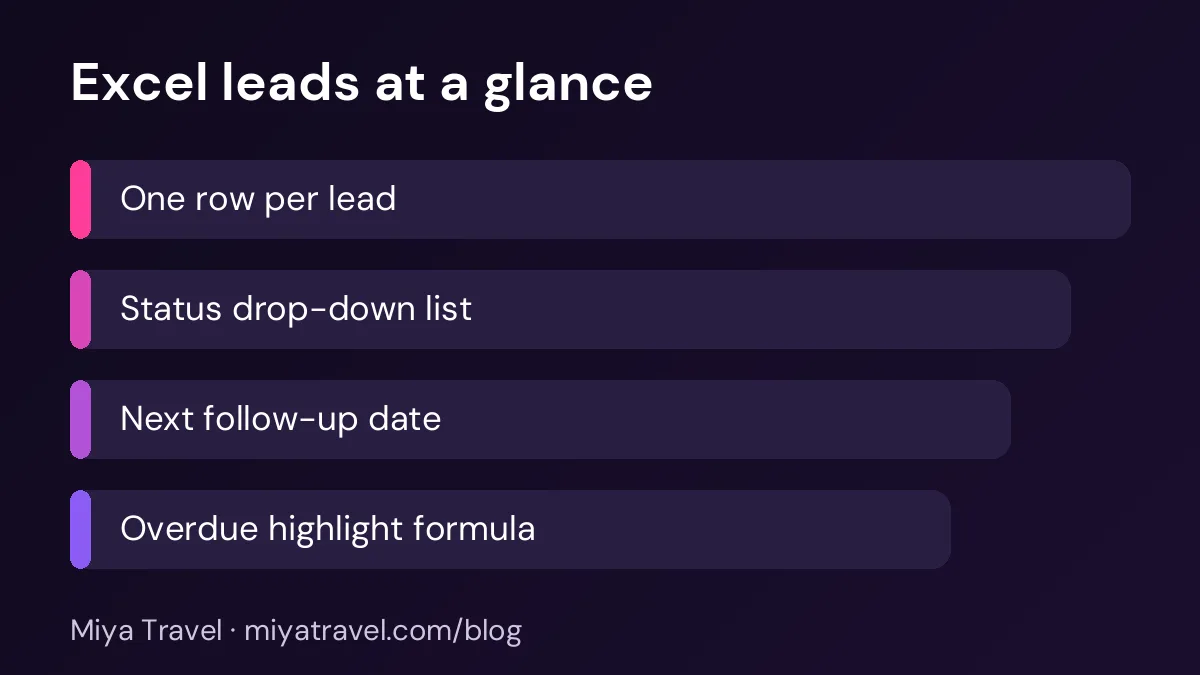
The most important rule is one row per lead. Do not put two clients in the same row, and do not create a new sheet for each client. A single sheet with a row for each enquiry lets you sort, filter and count the leads easily.
Keep the sheet in one place that everyone can open, such as a shared drive. If the team saves copies on their own computers, the sheet will drift apart within a week. Use one master file, and ask people to work in it directly rather than making their own copies.
Choose the columns
A useful lead tracker has about a dozen columns. Start with the date the enquiry arrived, the client name and the phone number. Add the source, such as website, referral, WhatsApp, phone or walk-in. Add the owner, who is the team member responsible for the lead.
Then add the destination, the travel dates or month, the number of travellers and the budget range. Finally, add the status, the next action, the next follow-up date and a short notes column. The notes column should hold one or two lines, not a full history.
Keep the column headings short and the same every time. If one month uses "Phone" and the next uses "Mobile", your filters will miss rows.
Use a status drop-down
Status is what makes the sheet useful. Set up a drop-down list in the status column with a small set of values: new, contacted, qualified, quoted, won and lost. In Excel, use the data validation feature to create the list. This keeps the statuses consistent, so counts and filters work correctly.
Agree what each status means before you start. A lead is new until someone contacts the client. It is contacted after the first call or message. It is qualified when you know the destination, dates and budget. Write these definitions at the top of the sheet or in a separate tab, so every team member uses them the same way.

Track the next follow-up date
The next follow-up date is the most important column in the sheet. Every open lead should have a date, and that date should be realistic. A lead with no follow-up date is a lead that will be forgotten.
Use a date format that everyone recognises, such as day, month and year. Avoid text entries like "next week", because Excel cannot sort or check them.
Highlight what needs attention today
Conditional formatting is the simplest way to see what matters. Select the follow-up date column and create a rule that highlights cells where the date is today or earlier and the status is not won or lost. The overdue leads will stand out at the top of the sheet.
You can also add a simple formula in a separate cell that counts overdue follow-ups. For example, a formula that counts rows where the follow-up date is less than today and the status is not won or lost gives you a number to check each morning. This small step turns the sheet into a daily to-do list.
Filter by owner
Each team member should be able to see only their own leads. Add a filter to the header row and ask each person to filter by their name in the owner column. This way, the sheet becomes a personal list for each agent and a full list for the owner.
If the team is larger than four or five people, the filter approach becomes slow. That is one of the signs that a dedicated tool will help.
Keep the sheet clean
A lead sheet grows quickly. Every month, move closed leads to an archive tab. Keep the main tab for open leads and recent wins. This keeps the sheet fast and makes the daily review easy.
Check for duplicates by phone number once a week. A client who sends two enquiries should appear once, with both trips noted. Duplicates split the history and cause confusion.
Simple reports from the sheet
You can create a few simple reports from the sheet. Count the leads by source each month to see which channels work. Count the leads by status to see how many are open. Count the quoted leads that became won to see your conversion rate. A pivot table can produce these numbers in a few clicks.
Review the reports once a month. Look for a source that produces many leads but few quotations, because it may need a better first response.
Common mistakes
The first mistake is copying the sheet for each person, which creates several versions. The second is leaving the status blank. The third is no follow-up date. The fourth is writing long notes in one cell, which makes the sheet hard to read. The fifth is never archiving closed leads, so the main list becomes too long to scan.
Another mistake is treating the sheet as a record of the past rather than a tool for the next action. The most useful column is always the next action and the date it is due.
When to move on from Excel
A spreadsheet works well for a small team. It starts to struggle when several people update the same file at the same time, when you need reminders that appear automatically, or when you want the quotation and the booking linked to the lead. If you see these signs, read our guide on moving from Excel to plan the switch.
Keep the columns you built in Excel when you move to a tool. The same structure will make the move faster, because you can export the sheet and map the columns directly.
Protecting the lead sheet
A shared lead sheet holds the agency's most valuable working data, so it needs basic protection. Store the master file in a shared location with version history turned on, so that an accidental deletion can be reversed. Restrict editing rights to the people who need them, and use a view-only copy for managers who only review numbers.
Protect the formulas and the status list. Lock the cells that contain formulas, so that a staff member does not overwrite the overdue count by mistake. Keep the drop-down values in a separate hidden tab, and check them each month to make sure no new values have crept in.
Back up the file regularly. A weekly copy saved in a separate place is a simple safeguard. If the file is ever corrupted or lost, the backup means the team does not have to rebuild the lead list from memory. Store the backup with a date in its name, so you know which copy is the most recent.
Keep personal data in mind. A lead sheet contains phone numbers and names, which are personal information. Limit sharing outside the team, and delete old copies that are no longer needed. Your data protection obligations apply to spreadsheets as much as to software.
Using the sheet during busy periods
During peak season, the lead sheet can grow very quickly. Plan for this by agreeing a daily routine that keeps the sheet manageable. Each morning, archive the leads closed the day before and update the overdue count. Each evening, check that every new lead has an owner and a next follow-up date.
If the sheet becomes slow to open or hard to scan, split it by quarter or by destination group, and keep the open leads in one main tab. Splitting the file is a sign that the team has outgrown the spreadsheet, and it may be the moment to plan the move to a dedicated tool.
Frequently asked questions
What columns should a travel lead tracker have?
Date, client name, phone, source, owner, destination, travel dates, travellers, budget, status, next action, next follow-up date and a short notes column.
How do I see overdue follow-ups in Excel?
Use conditional formatting to highlight follow-up dates that are today or earlier for open leads. Add a formula that counts them for a daily number.
Should each agent have their own lead sheet?
No. Use one master sheet and filter by owner. Separate copies drift apart quickly.
How often should I archive closed leads?
Once a month works for most teams. Keep the main tab for open leads and recent wins.
When should I stop using Excel for leads?
When several people work on the same leads at the same time, when reminders are missed or when you need quotations and bookings linked to each lead.